192.168.1.1 Admin Login — Quick Guide
Here’s the short version, assuming your router uses this address.
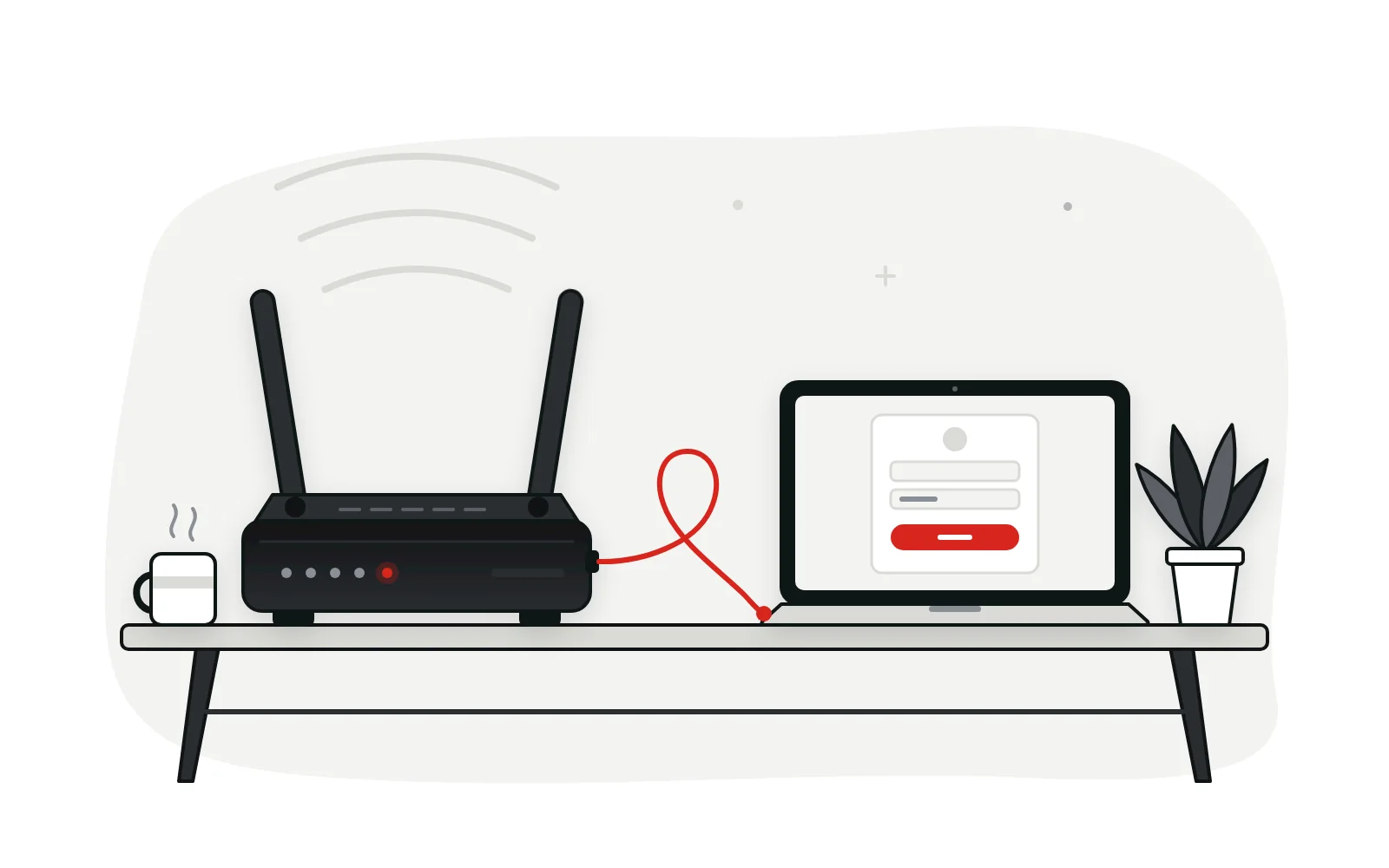
- Join your router’s Wi-Fi or plug in an Ethernet cable.
- Type
http://192.168.1.1into the browser’s address bar, not the search box. - Sign in with the admin username and password from the router label.
- Make your changes, then click Save or Apply before closing the tab.
No login page? Your router probably uses a different address. Check the default gateway on your device, which takes under a minute, then repeat these steps with that number.
What Is 192.168.1.1?
192.168.1.1 is a private IPv4 address from the 192.168.0.0/16 range that RFC 1918 reserves for local networks. It is not routed across the public internet, so countless homes can use it at once without conflict.
Many manufacturers give this address to the router itself. There it works as the default gateway: phones, laptops and TVs send internet-bound traffic to it, and the router forwards that traffic to your provider.
The router also hosts its settings page at this address, which is why a browser shows a login screen rather than a website. Plenty of models use 192.168.0.1 or 10.0.0.1, so treat 192.168.1.1 as common, not guaranteed.

How to Log In to 192.168.1.1
Logging in takes a minute once you know the right address. The five steps below work on Windows, macOS, Android, iPhone and ChromeOS, because most routers serve their admin panel through an ordinary web browser. No extra software is needed.
-
Connect to Your Router
Join the router’s Wi-Fi or connect a cable to one of its LAN ports. Mobile data won’t work, because the panel is local.
-
Open a Web Browser
Chrome, Edge, Firefox or Safari all work. Pause any active VPN first, because it can send the request away from your router.
-
Enter 192.168.1.1 Correctly
Type http://192.168.1.1 straight into the address bar and press Enter. Digits only: a lowercase l instead of 1 sends you to search results.
-
Enter Your Admin Credentials
A prompt asks for a username and password. Use the admin details from the router label, or the ones you created during setup.
-
Open the Admin Dashboard
After signing in, you land on a dashboard showing connection status, wireless settings and attached devices. Menu labels differ between brands and firmware.
192.168.1.1 Username and Password
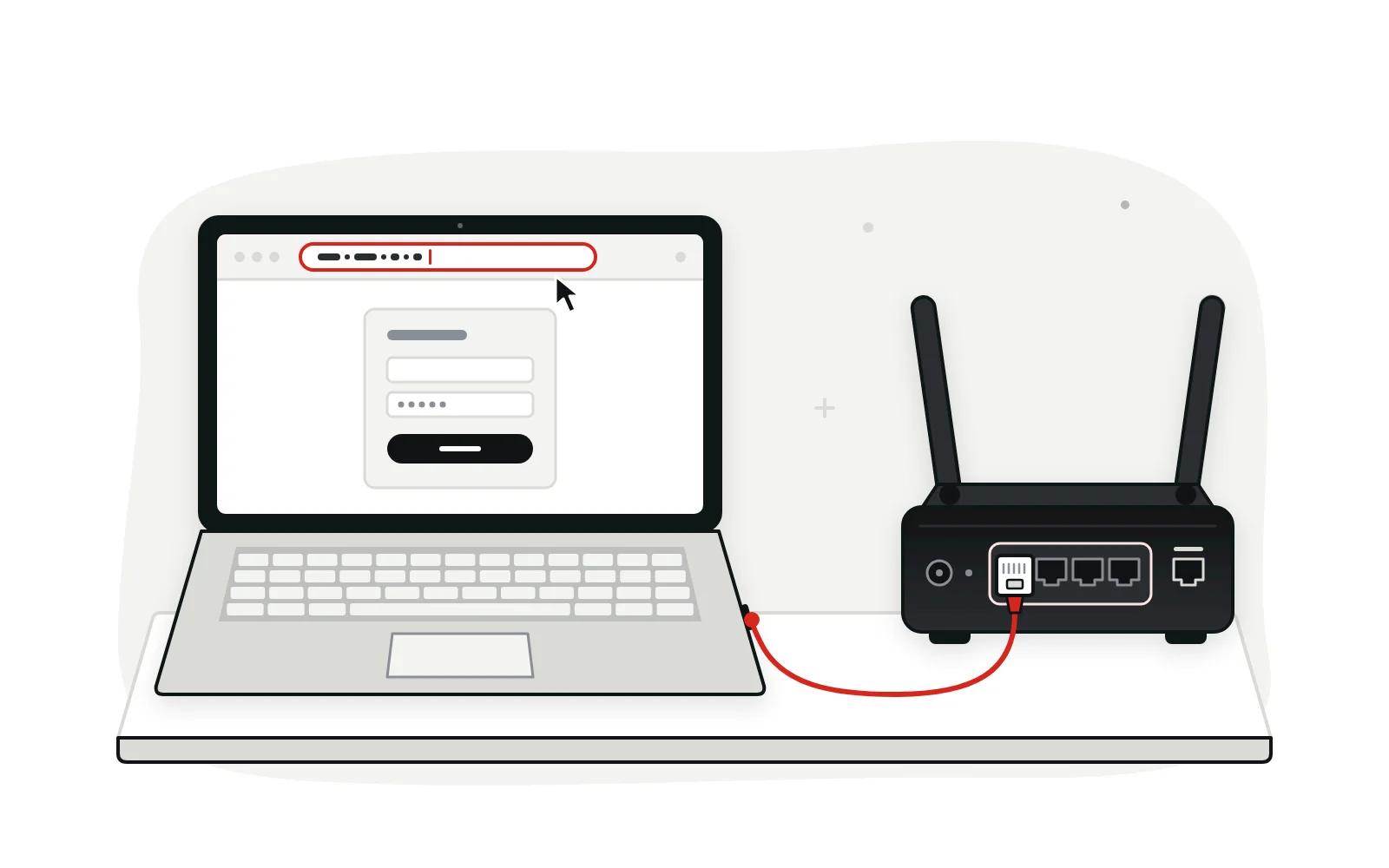
Two different passwords live on most routers, and mixing them up is a frequent cause of failed logins. The Wi-Fi password (sometimes labeled network key or WPA key) lets devices join your wireless network. The admin password protects the settings page at 192.168.1.1. Some labels print both side by side, which is where the confusion starts. They are separate settings, and changing one doesn’t change the other.
Older routers often shipped with a shared default such as admin for both fields. Newer ones usually carry a unique admin password printed on the label, or make you create your own the first time you sign in. Laws like California’s SB-327 and the UK’s PSTI rules pushed manufacturers in that direction by restricting universal default passwords.
If you changed the admin password and no longer remember it, you usually can’t look it up from outside the panel. Check any notes from setup first, then read our guide to recovering a router admin password before you reach for the reset button.
Common 192.168.1.1 Default Login Credentials
The pairs below are defaults some routers have used at 192.168.1.1 in the past. Treat them as starting points, not guarantees. Our full default password list covers more brands, but a password printed on your own label always takes priority.
- Older NETGEAR routersUseradminPasspassword
- Older Linksys routersUserleave blankPassadmin
- Older ASUS routersUseradminPassadmin
- Verizon Fios and many newer routersUseradminPassunique label password, or one you set at setup
192.168.1.1 Not Working? Here’s How to Fix It
A page that won’t load, spins forever or rejects your password usually has a simple, fixable cause. Work through these six fixes in order, because the quickest checks come first.
Check which network you’re on. Your device must be on the router’s own Wi-Fi or plugged into one of its LAN ports. Guest networks usually block the admin page, and a neighbor’s Wi-Fi or mobile data can’t reach it at all.
Confirm the gateway address. Your router may use 192.168.0.1, 192.168.1.254 or something else entirely. Look up the default gateway with the steps below and type that number instead.
Type the address cleanly. Use http:// rather than https:// unless the router redirects you. A certificate warning on your own network is typical for router pages, and some Linksys models show one by design.
Rule out the browser. Try a private window or a different browser, and pause any VPN, proxy or ad-blocking extension. Each of these can serve an old page or send the request somewhere else.
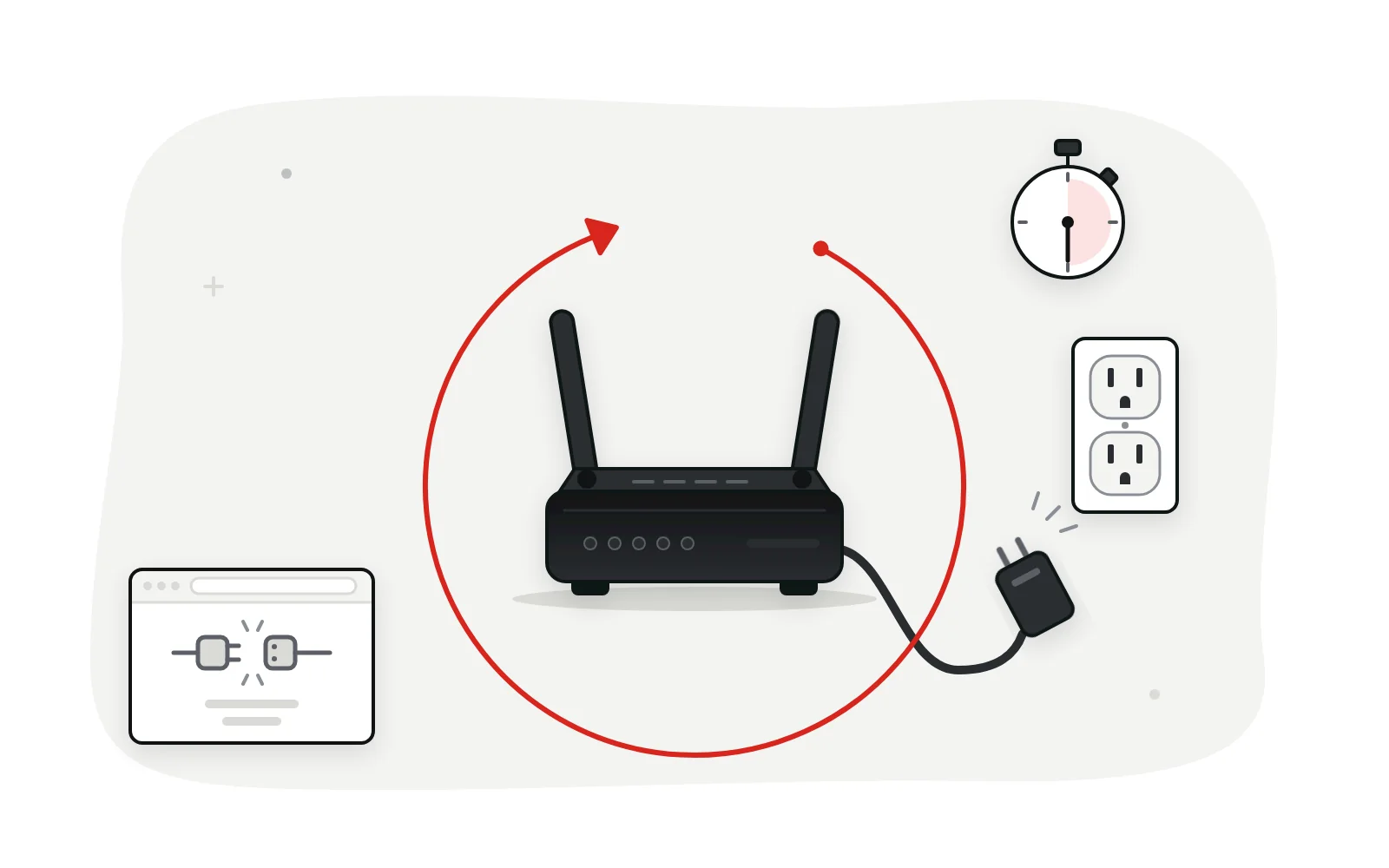
Restart the router. Unplug it for 30 seconds, plug it back in and give it two minutes to boot. A restart clears a stalled admin page without changing any settings.
Reset only as a last resort. Holding the reset button for around 10 seconds (check your manual) restores factory settings and erases your Wi-Fi name and password. Try our router login troubleshooting guide first.
How to Find Your Router’s IP Address
When 192.168.1.1 leads nowhere, look up the address your router actually uses. Every connected device stores this default gateway, so finding it takes seconds.
- WindowsOpen Command Prompt, run
ipconfigand read Default Gateway. - MacSystem Settings › Wi-Fi › Details › TCP/IP, then read Router.
- iPhone and iPadSettings › Wi-Fi › tap (i) beside your network › Router.
- AndroidOpen your Wi-Fi network’s details and look for Gateway or Router; the label varies by phone maker.
Type the number you find into the address bar exactly as shown. Our guide on how to find your router IP address covers Chromebooks and trickier setups too.
192.168.1.1 vs 192.168.0.1 vs 10.0.0.1
These three addresses turn up on a large share of home routers and provider gateways. The table below shows where each one usually appears and what really sets them apart.
| Detail | 192.168.1.1 | 192.168.0.1 | 10.0.0.1 |
|---|---|---|---|
| Private range (RFC 1918) | 192.168.0.0/16 | 192.168.0.0/16 | 10.0.0.0/8 |
| Addresses in that range | 65,536 | 65,536 | 16,777,216 |
| Typical home subnet | 192.168.1.0/24 | 192.168.0.0/24 | 10.0.0.0/24 |
| Devices usually get | 192.168.1.x | 192.168.0.x | 10.0.0.x |
| Often seen on | NETGEAR, Linksys, older ASUS, Verizon Fios | D-Link, many TP-Link, Tenda, cable modem-router combos | Xfinity (Comcast) gateways, some business routers |
| Browser shortcut | routerlogin.net (NETGEAR), myrouter.local (Linksys) | tplinkwifi.net, dlinkrouter.local | None widely used |
| App management | Optional on most models | Optional (TP-Link Tether, for example) | Xfinity app needed for many settings on newer gateways |
| Common typo | 192.168.l.l | 192.168.o.1 | 10.0.0.l |
| Our guide | You’re reading it | 192.168.0.1 login guide | 10.0.0.1 login guide |
192.168.1.1 vs 192.168.l.l — What’s the Difference?
192.168.l.l is not an address at all. Those final characters are lowercase letters L, not the number one, so a browser treats the whole string as a search term or an invalid hostname. The mix-up is easy to make because l and 1 look nearly identical in many fonts. No router uses 192.168.l.l, since an IPv4 address contains only digits and dots. If you copied the address from somewhere, retype it by hand using the number keys.
What Can You Do After Logging In to 192.168.1.1?
Once you’re inside the admin panel, you control how your home network behaves. These are the settings people change most often, with a short note on what each one does.
Change Wi-Fi Name (SSID)
The SSID is the network name nearby devices see. Choose something you’ll recognize, but leave out your surname, street address and router model, which give strangers clues.
Change Wi-Fi Password
Replace the printed Wi-Fi key with a long passphrase only your household knows. Every wireless device then drops off and must rejoin using the new password.
Configure Wireless Security
Wireless security decides how traffic is encrypted over the air. WPA3 is the current standard, WPA2-AES remains acceptable, and you should avoid WEP or open networks.
Manage Connected Devices
The device list shows everything using your network, usually with a name and MAC address. Investigate unknown entries; most routers let you block or pause them.
Set Up Guest Wi-Fi
A guest network usually gives visitors internet access without reaching your computers, printers or shared drives. It also works well for smart plugs, cameras and connected gadgets.
Change DNS Settings
DNS servers translate website names into addresses. Routers use your provider’s servers by default, but you can switch to Cloudflare 1.1.1.1 or Google 8.8.8.8 for most devices.
Configure QoS
Quality of Service lets the router favor traffic like video calls or gaming when your connection is busy. It helps most on slower plans with many users.
Set Up Port Forwarding
Port forwarding sends incoming connections on a chosen port to one device, which consoles, cameras and self-hosted apps sometimes need. Keep the rule list short and current.
How to Change Your Wi-Fi Name and Password
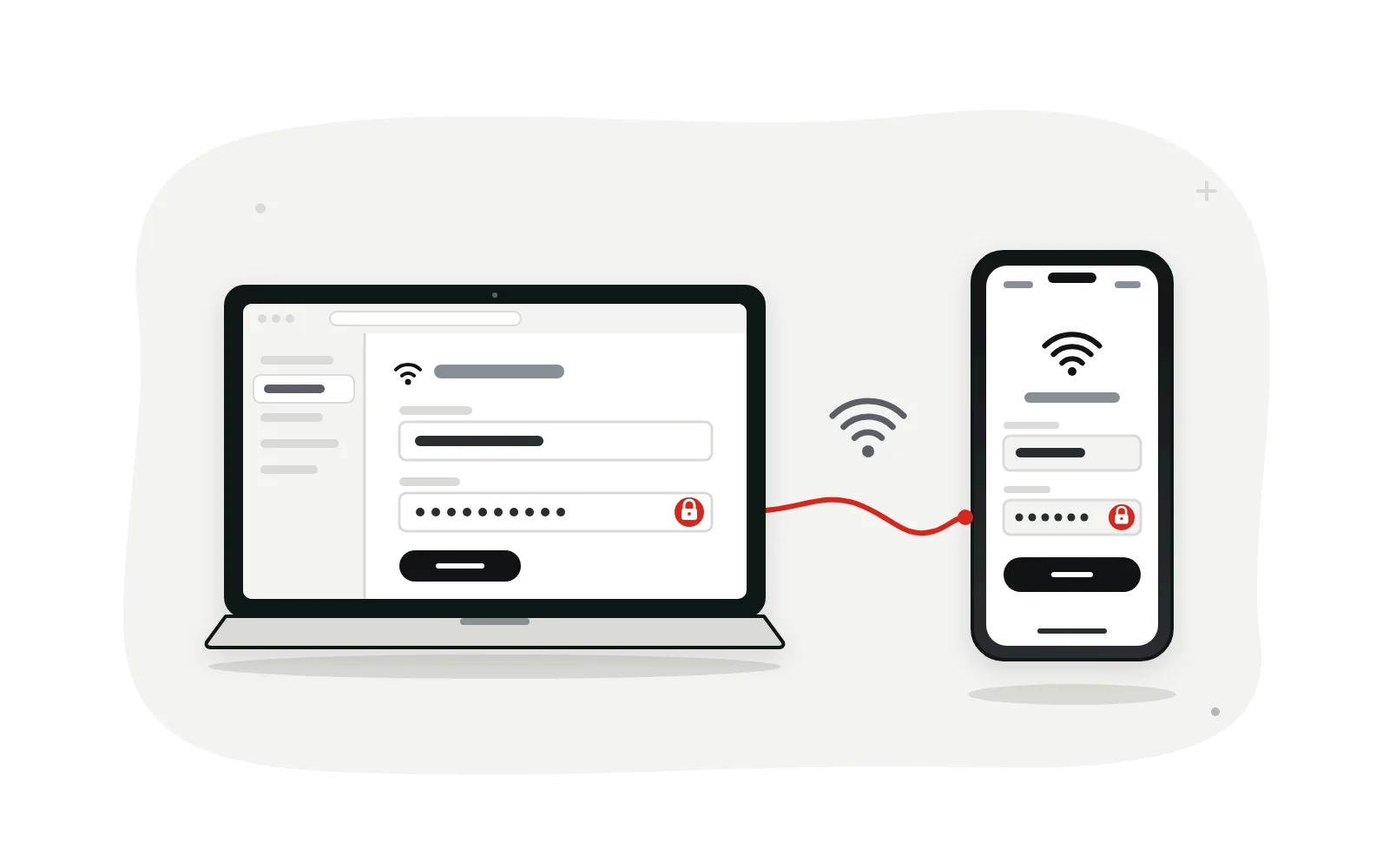
Changing both takes five minutes. If you can, work from a device connected by cable, because every wireless connection drops the moment you save. Name first, then password and security.
-
Open the Wireless Settings
Sign in at 192.168.1.1 and open the menu called Wireless, Wi-Fi or WLAN. Dual-band routers may split bands into tabs.
-
Change Your Wi-Fi Name
Type a new name in the SSID or Network Name field. With separate bands, add a clear suffix to each.
-
Create a Strong Wi-Fi Password
Use at least 12 characters, ideally a passphrase of four or more unrelated words. Avoid names, birthdays and reused passwords.
-
Select the Security Mode
Open the Security or Authentication dropdown and pick the strongest mode all your devices support, usually WPA3 or WPA2/WPA3.
-
Save the New Settings
Click Save or Apply and wait while the router restarts its radios. Forget the old network, then rejoin.
Frequently Asked Questions About 192.168.1.1
Use these answers when the login page won’t load, a password fails, or you need to manage 192.168.1.1 from another device. Each covers a different situation, so jump to yours.
Do I need an internet connection to open 192.168.1.1?
No. The admin page lives on the router itself, so it loads even when your internet service is down, as long as your device is connected to the router by Wi-Fi or cable. That makes it a handy place to check the connection status during an outage.
Can I open 192.168.1.1 on my phone?
Yes. Join the router’s Wi-Fi, then type the address into Chrome or Safari. If the page won’t load, switch off mobile data for a moment. Some phones quietly move traffic to cellular when the Wi-Fi network has no internet, and the router page can’t be reached that way.
Why does my browser say “Not secure” on the router page?
Many routers serve their login page over plain HTTP, or over HTTPS with a self-signed certificate that browsers can’t verify. On your own home network that is normal. Avoid typing your admin password on a network you don’t control, such as a hotel or café.
Can I change the router’s address from 192.168.1.1?
Yes. Look for LAN or Local Network settings, enter a new address such as 192.168.2.1 and save. Devices pick up new addresses when they reconnect, and you use the new number to log in from then on. This also fixes a clash when a modem and a router both use 192.168.1.1.
What is 192.168.1.254, and is it the same thing?
It is another private gateway address in the same range. AT&T gateways and some other provider equipment use it instead of 192.168.1.1. The login works the same way, so use whichever address your device lists as its default gateway.
Why does 192.168.1.1 open my provider’s modem instead of my own router?
If your own router sits behind a provider modem-router, typing 192.168.1.1 can reach the provider’s box through your router. Check your device’s default gateway, because that is the address of the router you are actually connected to. Bridge mode turns off routing on the provider’s box, so your own router becomes the only gateway you manage.
How do I keep other people out of my router settings?
Set a long, unique admin password, turn off remote management unless you need it, and install firmware updates when they appear. Replace routers that no longer get updates: in 2025 the FBI warned that criminals were hijacking end-of-life models.
Will resetting my router cut off my internet?
Briefly. A factory reset erases your settings, including the Wi-Fi name and password, and brings back the details on the label. Most cable and fiber connections return on their own. If your provider uses a PPPoE login, you will need to enter those details again.
Can I reach 192.168.1.1 when I’m away from home?
Not directly, because the address only exists inside your home network. Some routers offer remote access through the maker’s app or a cloud account, which is the safer route. Exposing the web admin page to the internet is risky, so leave remote management off unless you truly need it.
Conclusion
192.168.1.1 is simply the front door to your router, and getting through it comes down to three things: being on the right network, typing the right address and using the admin password rather than the Wi-Fi key. When the page won’t load, look up your real default gateway before trying anything drastic. Once you’re in, spend five minutes on the basics: a new admin password, WPA3 or WPA2 security, a fresh Wi-Fi passphrase and a quick look at connected devices. Those small changes make a home network noticeably safer. Bookmark the address you found so the next visit takes seconds.