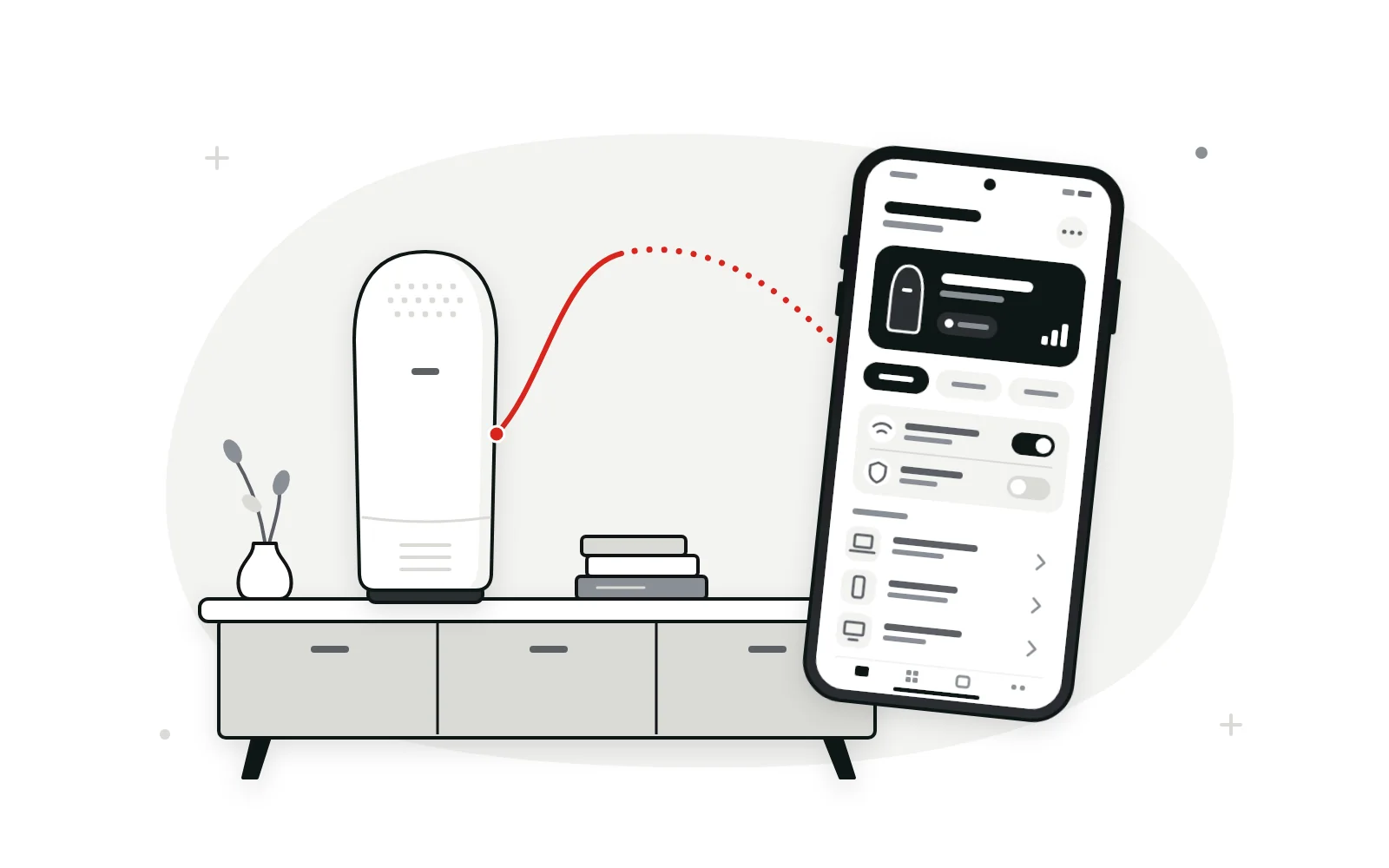
The short route for Xfinity gateway owners
On XB6 and newer gateways, allow access in the app first. Then sign in from a device on your home network.
Check the app before the browser. Xfinity now steers most home-network settings to its app, so the change you’re after may not need 10.0.0.1 at all.
- In the Xfinity app, allow Admin Tool online access. Older gateways without the switch skip this.
- Stay on your own home network, wired or wireless.
- Go to
http://10.0.0.1and sign in with the usernameadmin. - Use the password you set in the app, make your change, then switch access off again.
Why provider gateways use 10.0.0.1
Because the equipment maker or provider chose it. 10.0.0.1 belongs to 10.0.0.0/8, the largest of the three private ranges defined in RFC 1918, and Xfinity’s residential gateways use it for their local settings page.
Nothing about the number is special. Your devices send internet traffic to it, and the gateway passes that traffic out through its built-in cable modem.
That built-in modem is the point. An Xfinity gateway puts a modem and a router in one case, so a single page covers both the line to Comcast and your home Wi-Fi. Xfinity calls that page the Admin Tool. Business accounts and other providers use different addresses, rounded up near the end.
Turn on Admin Tool access in the Xfinity app first
On newer gateways, this switch decides whether 10.0.0.1 accepts a login at all. Xfinity suggests keeping it off whenever you’re not using the page, as a security measure.
- Xfinity app
- WiFi tab
- View WiFi equipment
- Advanced settings
- Admin Tool online access
The first time you allow access, the app asks you to create a new Admin Tool password. That becomes your password for 10.0.0.1.
Xfinity names the XB6, XB7, XB8 and XB10 as gateways with this switch. Older models, including the XB3 and Wireless Gateways 1 and 2, don’t support it, and Xfinity asks owners of those to contact it about an update. If a technician needs the page during a visit, switch it on for the appointment and off afterward. Full details are in Xfinity’s Admin Tool access article.
Opening the Admin Tool at 10.0.0.1
Once access is allowed, a few steps get you in from any browser on your home network.
-
Flip the switch in the app (XB6 and newer)
On an XB6, XB7, XB8 or XB10, follow the app path shown above, turn on Admin Tool access and tap Save. The first time, the app asks you to create an Admin Tool password. Older gateways have no switch, so go straight to the next step.
-
Stay on your private network
Use your own home Wi-Fi or an Ethernet cable to the gateway. The public xfinitywifi hotspot and cellular data can’t reach the page.
-
Browse to http://10.0.0.1
Type it in the address bar exactly as written, four numbers and three dots, and press Enter.
-
Sign in as admin
Enter admin as the username, add your Admin Tool password and click LOGIN. Screens vary by gateway model, but the fields don’t.
-
Switch access off afterward
When you’re finished, click Logout, then go back to the same app screen and turn Admin Tool access off.
The admin username and which password goes with it
The username is admin. The password depends on your gateway and on when Admin Tool access was first turned on.
- Access allowed for the first time recently: the password you created in the app.
- Access allowed before February 2026: Xfinity says the default password on the sticker under the gateway may still work.
- XB2 or XB3 gateways, which have no app switch: the sticker password to begin with. The Admin Tool then asks you to set new login details at your first sign-in and after a reset.
Two other passwords often get mixed up with these. Your Wi-Fi password, which Xfinity sometimes calls the network key, only connects devices. Your Xfinity ID password signs you in to the app and your account.
Xfinity’s rules for a new Admin Tool password: at least eight characters, upper- and lowercase letters and at least one number. Lost yours? Our locked-out router guide explains what a gateway reset wipes and when it’s worth doing.
Why 10.0.0.1 might refuse you
Usually the access switch is off or you’re on the wrong network. Work down this list in order.
- Access is switched off. Newer gateways turn the page away until the app switch is on. Open the app again and confirm the change saved.
- You’re on xfinitywifi or cellular data. Only your private home network can reach the gateway’s settings.
- Your own router is in charge. If the gateway is bridged, or a personal router sits behind it, 10.0.0.1 is no longer your gateway. Our router IP lookup guide shows how to read the address that replaced it.
- The sticker password fails. It only applies to older setups. If you allowed access recently, use the password you created in the app.
- The setting you want isn’t there. On XB6 and newer gateways, and on any network with WiFi Extenders, the Wi-Fi name and password can only be changed in the app.
- The browser is getting in the way. A second browser or a private window rules out stale cookies and extensions. Pause any VPN while you work.
App or browser? Who handles what
Xfinity sends most people to the app for day-to-day settings and keeps the Admin Tool for a shorter list. The split below follows Xfinity’s support articles. Menus can shift when the app updates.
Xfinity appSigned in with your Xfinity ID
- Wi-Fi name and password on XB6 and newer gateways, or on any network with Xfinity WiFi Extenders
- Port forwarding rules
- The Admin Tool online access switch itself
- Turning on Xfinity CyberSecure
- WiFi Extenders and other network personalization features
Admin Tool at 10.0.0.1Signed in as admin, on your home network
- Turning bridge mode on and off
- Port triggering
- Wi-Fi name and password on XB2 and XB3 gateways
- Changing the Admin Tool password
In practice, if the app offers a setting, change it there. Open 10.0.0.1 for bridge mode and the advanced items the app leaves out.
What the Admin Tool still controls
Mostly the gateway itself: how it operates, a few advanced traffic rules and its own password. These are the menus Xfinity’s articles point to.
- Gateway › At a Glance. The gateway’s summary screen, and home to the Bridge Mode setting.
- Gateway › Connection › Wi-Fi. Network name and password, for XB2 and XB3 owners only. If you see one name per band, Xfinity suggests giving both the same name.
- Advanced › Port Triggering. Opens an inbound port only after a device starts a session on it, then closes it again. Xfinity presents this as a safer choice than port forwarding for games and chat apps.
- Change Password. At the top right of the screen. It sets a new Admin Tool password.
For XB2 and XB3 gateways, Xfinity also documents a factory reset: a 30-second hold on the recessed button on the back. It restores the sticker password and the default Wi-Fi details, so keep it for when nothing else works.
Other things you might expect from a home router, such as renaming Wi-Fi on a newer gateway or forwarding a port, have moved to the app. If a menu seems to be missing, that’s the usual reason.
Bridge mode checklist for your own router
In bridge mode the Xfinity gateway stops routing and works purely as a modem, while your own router runs the home network. Tick off these points before you switch it on.
Switching it on
- Sign in at
http://10.0.0.1and open Gateway › At a Glance. - Click Enable next to Bridge Mode.
- Read the warning that router functions and the private Wi-Fi will turn off, then click OK.
- Let the gateway restart if it needs to, then plug your router into one of its Ethernet ports.
From then on, 10.0.0.1 is no longer your home gateway, and your router’s own address takes over. On Xfinity’s community forum, bridged gateways are described as showing only a limited status page, often at 192.168.100.1, though some owners still reach them at 10.0.0.1.
To undo it, wire a computer to the gateway, sign in and set Bridge Mode to Disable. Xfinity’s bridge mode article has the full warning text.
10.0.0.1, 192.168.1.1 and other provider defaults
They’re the same kind of thing: private gateway addresses. What differs is who uses them. 10.0.0.1 is the default on Xfinity’s home gateways, while 192.168.1.1 turns up on many retail routers and on Verizon Fios equipment.
The number doesn’t change what the equipment can do. It matters when you swap equipment. Bridge your gateway and add a store-bought router, and your login moves to whatever that router uses, often 192.168.1.1. Our main guide to router admin login covers that address in depth.
Lookalike addresses
- 10.1.10.1 is the usual address on Comcast Business gateways, where the admin username is commonly cusadmin.
- 192.168.0.1 is often linked with Cox Panoramic Wifi gateways. Cox steered those to its app, and its customers are now switching to Spectrum, so a local settings page may not help. Our 192.168.0.1 login guide explains that address and cable modem-router combos.
- 10.0.1.1 is one digit away from 10.0.0.1. It’s a separate address, and it was the default on Apple’s discontinued AirPort base stations.
More on 10.0.0.1 and the Xfinity app
Is 10.0.0.0.1 a valid address?
No. An IPv4 address has exactly four numbers separated by three dots, so a five-part entry can’t reach anything. The extra zero usually creeps in from memory. Type 10.0.0.1 instead.
I own my modem instead of renting one. Does this apply to me?
Only partly. The app switch and the Admin Tool belong to Xfinity’s rented gateways. A modem or router you bought yourself has its own address and login, set by its maker, so check its label and the manufacturer’s support site.
What happens to the Admin Tool password after a factory reset?
Any Admin Tool password you set is erased. On older XB2 and XB3 gateways, the sticker password works again, and the Admin Tool asks for new login details at the next sign-in. On XB6 and newer, you may need to switch Admin Tool access back on in the app and create a fresh password there.
Why do my phone and laptop show addresses like 10.0.0.23?
The gateway hands those out from its own 10.0.0.x range using DHCP. Each device gets a different last number, while .1 belongs to the gateway. Typing a device’s address won’t open the Admin Tool; only the gateway’s address will.
Can guests on my Wi-Fi open the Admin Tool?
Anyone on your private network can reach the sign-in screen while access is switched on, but they still need the admin password. A strong, unique password and keeping access off between uses close that gap.
Does the Xfinity app still work while Admin Tool access is off?
Yes. The switch only controls the browser page at 10.0.0.1. Account tools, Wi-Fi details and the app’s other features keep working either way.
The app first, then the browser
On XB6 and newer gateways, the 10.0.0.1 login is now a two-step job. Allow Admin Tool access in the app, then sign in as admin with the password you created there. Everyday changes, like renaming Wi-Fi on a newer gateway, belong to the app. The browser page still handles bridge mode and a handful of advanced rules. If 10.0.0.1 stops answering after you add your own router, that’s expected, so look up your new gateway address. And when you’re finished, switch access off.