Start With Three Quick Questions
Answer these three in order to find your route: a connection fix, recovery or a reset. Only the very last branch costs you your settings.
-
Can you still reach the router’s login page?
- Yes Good. Go on to question 2.
- No That’s a connection problem, not a password one. Work through our fixes for a router login page that won’t open, then come back.
-
Does the label password, or one you saved, get you in?
- Yes You’re in. Jump to setting a new admin password.
- No Keep going to question 3.
-
Does the login screen or the maker’s app offer a way to recover?
- Yes Recover. Follow the brand steps below. Your settings stay as they are.
- No Reset. Everything returns to factory defaults, so fill in the checklist first.
Router Password Recovery vs. a Factory Reset
Recovery gives you a new way into the router and leaves your setup alone. A factory reset erases the configuration and returns the router to the state it shipped in. The table shows what each one touches.
| What’s affected | Password recovery | Factory reset |
|---|---|---|
| Admin password | Replaced with one you choose | Back to the label, or you create one during setup |
| Wi-Fi name and password | Unchanged | Back to the details on the label |
| Port forwards, reservations, parental controls | Kept | Erased |
| Internet login (PPPoE), if your provider uses one | Kept | Erased, so you type it in again |
| Connected devices | Stay online | Drop off and need to rejoin |
| What you need | A feature switched on earlier, a recovery key, or the old password | Physical access to the router and time to set it up again |
Recovery has a catch. The router has to support it, and on several brands it must be switched on before the password goes missing.
Check the Sticker on the Router
Start with the label on the bottom or back of the router, because many newer models print a unique admin password there. Look for wording such as Admin password, Router login, Device Access Code or Admin Tool password.
Entries labeled Wi-Fi password, Network key or WPA key are for joining the wireless network, though a few models use one password for both.
If the printed admin password is rejected, someone probably changed it after setup, or the router had you create your own. Photograph the sticker anyway. It shows the model and serial numbers, and some recovery screens ask for the serial.
Sticker missing or worn? For a rented gateway, contact your provider. Xfinity, for one, asks customers to call in that case.
Look Up the Manual for Your Model
The manual gives the default login, says whether a recovery feature exists and tells you how long to hold the reset button. Steps for one model can be wrong for the next, even within one brand.
- Copy the exact model number from the label. TP-Link and some others also print a hardware version, such as V2, and manuals can differ between versions.
- Download the user guide for that model from the manufacturer’s support site.
- Check the quick start card from the box for the login address and any first-time password step.
Our list of factory logins by router brand shows what major brands have shipped with. If it disagrees with your manual, trust the manual.
Find the Admin Password You Saved Before
If you ever typed the admin password into a browser, it may well have been saved, so search your password lists before you touch the router. Search for the router’s address (for example “192.168”), the brand name or a shortcut such as routerlogin.net.
- Chrome: open Google Password Manager from Settings › Autofill and passwords.
- Safari and iPhone: use the Passwords app on iOS 18 or macOS Sequoia and later, or Settings › Passwords on older versions.
- Edge and Firefox: open the Passwords page in settings. In Firefox you can also type
about:loginsin the address bar. - Password managers: search your vault for “router”, your brand or the gateway address.
An entry saved under your Wi-Fi network name is almost always the wireless key, not the admin login.
Also ask whoever set up the network, and look for installer paperwork or notes in the box. If the maker’s app still manages your router, check its settings, since some apps can set a new local password. Try the few passwords you remember, then stop, because some routers pause sign-ins after repeated failures.
Recovery Options From Router Makers and Providers
Several brands and providers offer a way back in without a reset. Most depend on something you set up earlier, or on a code printed on the hardware.
| Brand or provider | How recovery works | The catch |
|---|---|---|
| TP-Link | A Forgot Password? link on the login page uses email or security questions. | It must be set up beforehand under Advanced › System › Administration (System Tools on some models). TP-Link’s recovery FAQ says a factory reset is needed otherwise. |
| NETGEAR | After three failed sign-ins at routerlogin.net, the router asks for its serial number, then the answers to two security questions. | It only works if the security questions were set up earlier. NETGEAR’s admin password article has the steps; another of its guides says the feature doesn’t support Safari. |
| Linksys (mesh and Smart Wi-Fi) | Click Reset Password on the local sign-in page, then type the Recovery Key from the label of the main router, the one wired to your modem. | Linksys says this changes only the password, not your settings. Availability depends on the model. |
| Xfinity (XB6, XB7, XB8, XB10) | Admin Tool access is switched on in the Xfinity app, and first-time users create the password there. | The sticker only helps where access was first allowed before February 2026, according to Xfinity’s Admin Tool article. Lost a password you created? Start in the app or contact Xfinity. |
| AT&T gateways | Changes at 192.168.1.254 need the Device Access Code from the gateway’s label. | If you changed that code and forgot it, AT&T’s access code page says to hold the Reset button to restore factory defaults. |
| Tenda | Tenda’s current login guide shows a Forgot password? link beside the login window. | You verify yourself on screen, then set a new password. Older models may not offer the link. |
| Verizon Fios | Recent Fios routers print a unique admin password on the rear label, and the My Verizon app handles many settings. | The label only helps if nobody changed the password. |
Have an Xfinity box? Our 10.0.0.1 gateway guide explains how the app and the browser page split the work.
Write This Down Before You Reset
A reset erases whatever you customized, so capture those details while you still can. Tick each line or mark it as not needed.
Can’t open those screens? Your provider account often lists internet login details, and the router’s app may show Wi-Fi and device lists. Photograph the cables on the back of the router, too, so each one goes back into the same port.
One warning about backup files: on many routers they include the admin password. Restoring one can bring back the password you forgot, so change it right after a restore.
How to Reset a Router You Can’t Sign In To
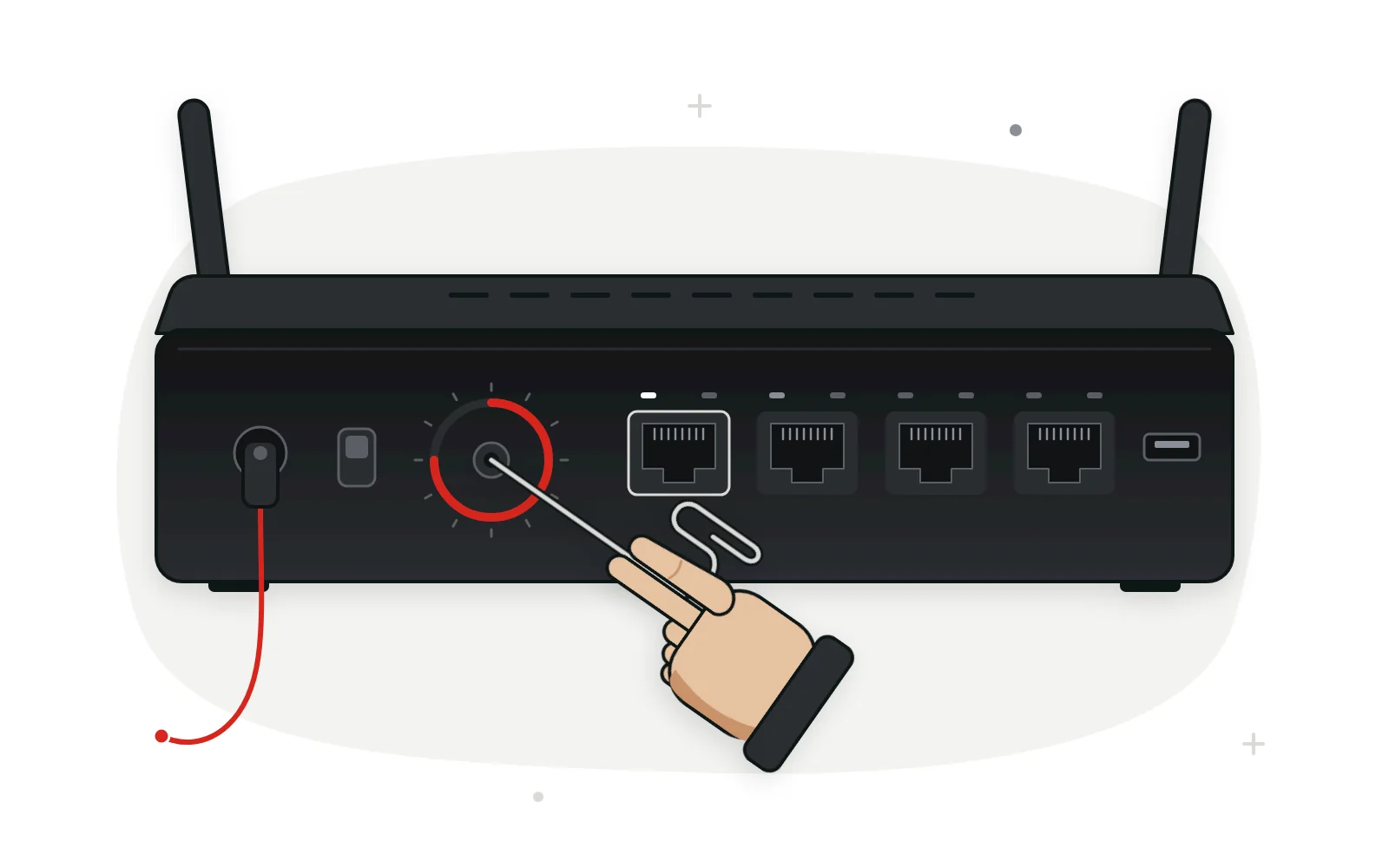
Hold the recessed reset button while the router is switched on until the lights change, then give it a few minutes to restart with factory settings.
-
Leave the router switched on
Most routers only reset while they are powered and fully started. If you just restarted it, wait until the lights stop blinking before you begin.
-
Press and hold
Push a straightened paperclip or SIM tool into the hole until you feel a click. Hold it for the time your manual gives, often around 10 seconds. NETGEAR asks for seven seconds on many routers, while TP-Link says more than 10.
-
Release and let it restart
Let go when the lights flash or change pattern, then give the router several minutes. Don’t pull the power while it restarts.
-
Sign in with the factory details
Join the Wi-Fi network printed on the label, or plug in a cable. Open the login page and use the label’s admin details, or create a new password if the router asks you to.
Provider gateways sometimes use their own sequence. Xfinity’s reset article for its older XB2 and XB3 gateways calls for a 30-second hold, then a wait until the lights turn solid. If your provider publishes steps, use those.
Don’t confuse a reset with a restart. Unplugging the router or choosing Reboot keeps every setting. Only the pinhole hold, or a Factory Defaults option in the settings, wipes them.
What Changes After a Factory Reset
Your router comes back as a blank slate. The network name and passwords on the label work again, and anything you added is gone.
- Wi-Fi devices drop off. Rejoin with the label details, or restore your old network name, password and security type exactly, and most devices reconnect on their own.
- Internet may wait for setup. Many connections return once the router restarts. Services that need a PPPoE login or a VLAN ID stay offline until you enter them.
- Custom rules vanish. Port forwards, reservations, DNS choices, parental controls and guest Wi-Fi all need setting again.
- Mesh points may need pairing. Satellites and extenders sometimes have to be added back.
- The setup wizard may return. Newer routers often make you create an admin password first.
A reset won’t fix a wrong network, a VPN in the way or an app-only system. It does put a changed LAN address back to the factory default, so check your device’s gateway again afterward. If the login page never loaded at all, confirm your router’s IP address before resetting anything.
Set a New Admin Password and Keep It Safe
Change the admin password as soon as you’re back in, then store it where you’ll find it next time.
-
Pick something long and unique
Three or four random words joined together are easy to type and hard to guess. Don’t reuse your Wi-Fi password or the password for any online account.
-
Save, then sign in again
Click Save or Apply. Most routers sign you out at this point, so log back in with the new password to prove it works.
-
Store it where you’ll look next time
Save it in your password manager under the router’s address, or write it inside the manual that stays at home.
-
Switch on a safety net
If the router offers password recovery, security questions or a recovery key, set that up now. Export a settings backup while you’re there.
While you’re in, our rundown of settings worth changing once signed in covers security mode, guest Wi-Fi and more.
Lost Admin Password Questions, Answered
Can my internet provider tell me my router’s admin password?
If you rent the gateway, call the number on your bill. Support staff can usually confirm which login applies to your model or talk you through their own reset process. They have no way to look up a password you set on a router you bought yourself.
Does a factory reset undo firmware updates?
Usually not. A reset returns the settings to their defaults but normally leaves the installed firmware version alone. Check for updates anyway once you’re signed in, because a fresh setup is a convenient moment to install one.
Are router password recovery programs safe to use?
Be careful with them. A tool that lists passwords saved in your own browser only shows what the browser’s settings already show you. Anything that promises to pull the admin password out of the router itself deserves suspicion, and downloads like that can arrive bundled with adware.
What if holding the reset button does nothing?
Make sure the router is powered on and that you are pressing the reset pinhole rather than a WPS button or a screw hole. Hold for the full time your manual lists while watching the lights. If nothing changes, the button may be faulty, so contact the manufacturer, or your provider if the gateway is rented.
I use eero or Google Nest Wifi. Is there an admin password to recover?
Not in the usual sense. These mesh systems are managed through an app, and access follows the eero or Google account you signed in with. If you’re locked out, recover that account through its sign-in screen rather than resetting the hardware.
Should I write the new password on the router itself?
A password manager is the safer home for it. Any visitor can read a sticker, and anyone on your network could then sign in to the settings. If you do write it down, keep the note somewhere only your household can reach.
Back in Charge of Your Router
A forgotten admin password is fixable, often without losing a single setting. Try the label, your saved passwords and the maker’s recovery option before anything else. If none works, record your custom settings, reset the router, and set a new password you store safely along with any recovery feature it offers. For everyday sign-in steps, our router admin login walkthrough picks up from here.