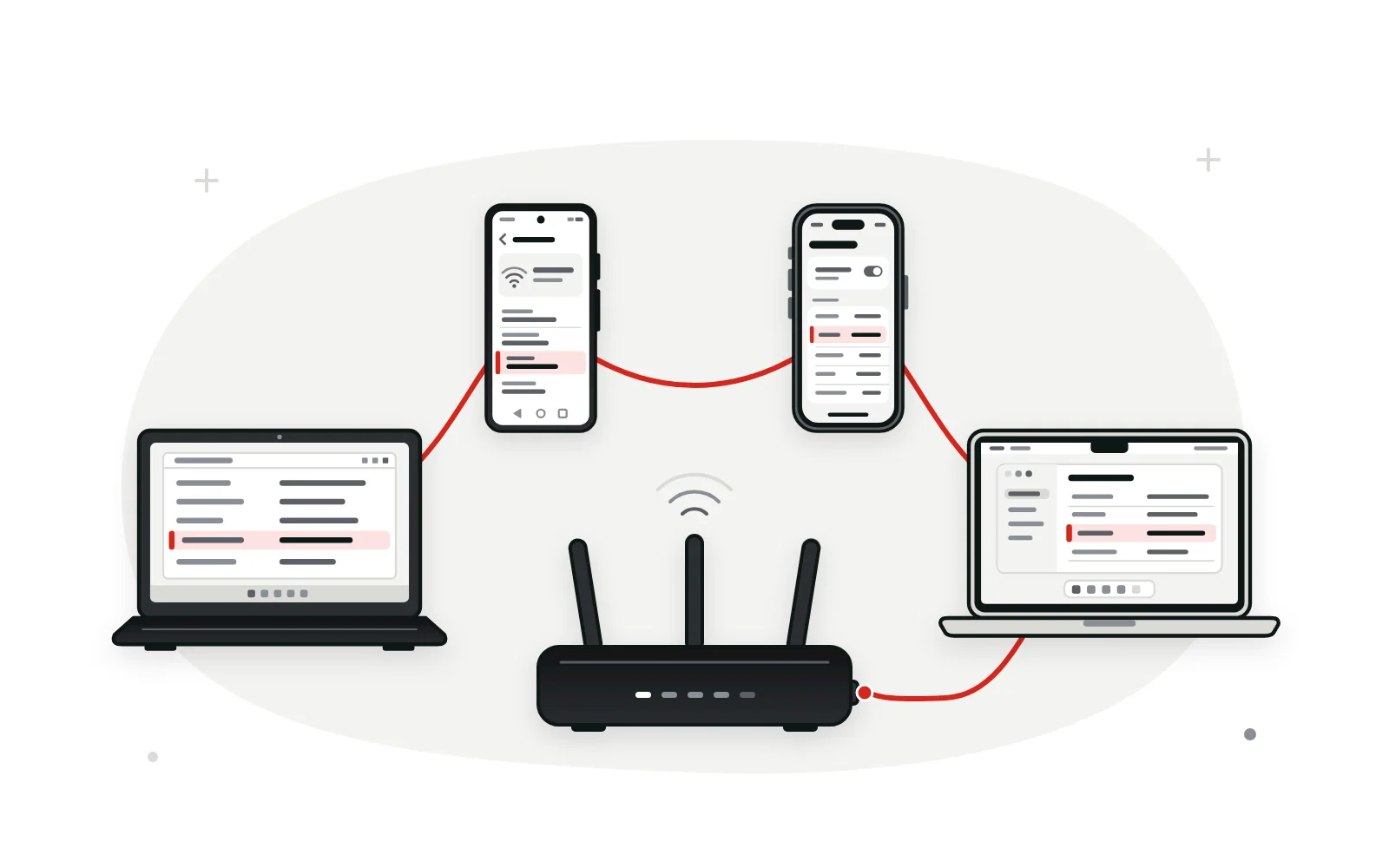
Short answer: the gateway is your router
Your router’s IP address is the default gateway shown in your device’s network details. Look for a line called Default Gateway, Gateway or Router while you’re on your home network, then type that number into the browser’s address bar.
- Check from inside the network. On mobile data or a neighbor’s Wi-Fi, your device reports someone else’s gateway, or none at all.
- Use the IPv4 number. It has four groups of digits, like 192.168.0.1. Ignore long entries that start with fe80.
- Trust the gateway over old notes. It normally points to the router you’re connected to right now, even if someone changed the address after setup. VPNs and a second router are the usual exceptions, covered further down.
Finding the router IP address on Windows
The ipconfig command is the quickest way on Windows 11, and it works the same way on Windows 10. If you’d rather avoid a command window, the Settings app shows the same number.
With ipconfig in Command Prompt
-
Open Command Prompt
Press the Windows key, type cmd and press Enter. Windows Terminal or PowerShell works just as well.
-
Run ipconfig
Type ipconfig and press Enter. Windows prints a block of details for every network adapter in the PC.
-
Find the adapter you’re using
Scroll to the Wireless LAN adapter Wi-Fi or Ethernet adapter block that shows an IPv4 address. Skip any block marked Media disconnected.
-
Read the Default Gateway line
The number on that line is your router’s IP address. Type it into your browser’s address bar to reach the sign-in page.
C:\Users\home> ipconfig Windows IP Configuration Ethernet adapter Ethernet: Media State . . . . . . . . . . . : Media disconnected Connection-specific DNS Suffix . : Wireless LAN adapter Wi-Fi: Connection-specific DNS Suffix . : lan Link-local IPv6 Address . . . . . : fe80::4a1c:9e2f:7b30:d5e6%12 IPv4 Address. . . . . . . . . . . : 192.168.0.27 Subnet Mask . . . . . . . . . . . : 255.255.255.0 Default Gateway . . . . . . . . . : 192.168.0.1your router In this example the router answers at 192.168.0.1, a common default on many TP-Link and D-Link models and on cable modem-routers. Our 192.168.0.1 sign-in guide picks up from there. Microsoft’s ipconfig reference explains the command’s other switches.
Through the Settings app
Open Settings › Network & internet › Advanced network settings, then select Hardware and connection properties under More settings. Windows lists every adapter. Find the Wi-Fi or Ethernet adapter you’re using and read its default gateway entry. The exact label can shift slightly between Windows updates, so scan for the word “gateway.”
One line of PowerShell
Run Get-NetIPConfiguration and read the IPv4DefaultGateway line under your active adapter. To print just the number, use (Get-NetRoute -DestinationPrefix '0.0.0.0/0').NextHop. Two numbers mean more than one active connection, such as Wi-Fi plus a cable, or a VPN.
On a Mac: Wi-Fi details or one Terminal command
macOS calls the gateway Router. On macOS Ventura and later, you’ll find it in System Settings:
- Choose Apple menu › System Settings › Wi-Fi.
- Click Details next to the network you’re connected to.
- Select TCP/IP and read the Router field.
On a wired Mac, go to System Settings › Network, pick the Ethernet service, then open Details › TCP/IP. Apple’s guide to TCP/IP settings on Mac shows the same screen.
There’s a faster shortcut: hold Option and click the Wi-Fi icon in the menu bar. The details under your network include the router address, as Apple notes in its Wi-Fi status menu guide.
In Terminal, route -n get default prints a line reading gateway: 192.168.0.1 or similar. netstat -nr | grep default works too, but it also lists IPv6 routes, so use the row with four groups of digits.
Android: where the gateway hides
Android shows the gateway in the Wi-Fi network’s details, but each phone maker arranges the menus differently. Stay connected to the network while you look.
Google Pixel
Open Settings › Network & internet › Internet and tap the gear icon beside your connected network. Scroll to Network details and read Gateway. On some Android versions you tap Advanced first to reveal it.
Samsung Galaxy
Go to Settings › Connections › Wi-Fi and tap the gear icon next to your network. Depending on the One UI version, the router details appear on that screen or under View more. Some Galaxy models also show a Manage router link there, which opens the router’s page in your browser.
When your phone doesn’t show a gateway
A few Android builds, often from smaller brands, don’t display the gateway at all. Check from a computer on the same network, read the router’s label, or use a network-info app from the Play Store that reports the gateway.
You may see advice to switch the network to a Static IP just to read the gateway field. Skip it. The form may not show your real gateway, and saving it by accident can cut the phone off from the network.
On an iPhone or iPad
Apple uses the word Router on iPhone and iPad too, and the steps are identical on both. Open Settings › Wi-Fi and tap the (i) button next to the network with the checkmark. Under the IPv4 address section, the Router line holds your router’s IP address.
If the Router line is blank, the device hasn’t received an address from the router yet. Tap Forget This Network, then rejoin it with the Wi-Fi password.
Chromebook
ChromeOS labels the router’s address Gateway. Open Settings › Network › Wi-Fi and select the network you’re connected to. On its details page, expand the Network section. The gateway sits next to your Chromebook’s IP address and routing prefix.
Using a USB Ethernet adapter? Choose Ethernet under Network instead of Wi-Fi. Menu wording moves a little between ChromeOS releases, but the Network section has held these details for years.
Linux desktops
One command covers almost every distribution. Run ip route | grep default and you’ll see a line like default via 192.168.0.1 dev wlp3s0 proto dhcp. The number after “via” is your router.
On GNOME desktops, including Ubuntu’s default, open Settings › Wi-Fi, click the gear icon beside your network and look under the Details tab. Recent GNOME versions label the router’s address Default Route.
What a default gateway is, in plain English
The default gateway is the device your phone or computer sends traffic to whenever the destination isn’t on your home network. In most homes that device is the router, so the gateway and the router IP address are the same number.
Think of an office mailroom. Anything addressed outside the building goes there first, and the mailroom sends it on. Your router does the same for web pages, video and game traffic, and it also answers at that address with its settings page.
The router hands out the gateway through DHCP when a device joins, along with the device’s own IP address and DNS servers. That’s why devices on the same network normally report the same gateway. A VPN, a second network adapter or settings typed in by hand can make one device the odd one out.
Two gateways: a provider box in front of your router
Plug your own router into a provider modem-router that also routes, and you get two gateways stacked, a setup called double NAT. Your devices only report the nearer one, your own router. The provider’s box sits one step further out on its own address, often 192.168.0.1, 10.0.0.1 or 192.168.1.254.
To see both, run tracert -d -h 3 8.8.8.8 on Windows, or traceroute -n -m 3 8.8.8.8 on a Mac or Linux PC. The first hop is your router. A second hop in 192.168.x.x or 172.16–31.x.x usually means another router in your home; 10.x.x.x often does too, though some providers use it on their side. Asterisks mean a hop didn’t reply. A 100.64.x.x address belongs to your provider’s network, not to a box in your house.
If the outer box is an Xfinity gateway, our 10.0.0.1 guide covers its app settings and bridge mode, which switches off the second router.
Mesh Wi-Fi systems
A mesh kit has one main unit, the one cabled to your modem, and that unit is the gateway. Satellite units relay traffic without becoming gateways, so every device reports the main unit’s address whichever room it’s in. When the mesh runs in bridge or access point mode, the gateway is the router in front of it.
Systems run from an app
Some systems report a normal-looking gateway but offer no full settings page at that address. eero networks usually show 192.168.4.1, and Google Nest Wifi uses 192.168.86.1. You manage both in their apps: the eero app and the Google Home app. If your gateway matches one of those, open the app rather than a browser.
The address you found still won’t open
A correct-looking gateway can still fail to bring up a login page. Each case below explains what the number, or the missing number, is telling you.
Only an fe80:: address appears
That’s an IPv6 link-local address. It’s real, but browsers won’t open it the way they open an IPv4 address. On Windows, look one line lower, because ipconfig often stacks the IPv4 gateway directly under the fe80 entry. On phones and Macs, read the IPv4 section instead.
Your device shows a 169.254 address
A 169.254.x.x address means your device asked for an address, got no answer, and assigned one to itself. The gateway line is usually empty in this state, as in the sample below.
Wireless LAN adapter Wi-Fi: Connection-specific DNS Suffix . : Link-local IPv6 Address . . . . . : fe80::4a1c:9e2f:7b30:d5e6%12 Autoconfiguration IPv4 Address. . : 169.254.83.140self-assigned Subnet Mask . . . . . . . . . . . : 255.255.0.0 Default Gateway . . . . . . . . . :empty Turn Wi-Fi off and back on, reseat the Ethernet cable, or run ipconfig /release followed by ipconfig /renew on Windows. If it keeps happening, restart the router, since its DHCP service may have stalled.
A VPN is switched on
VPN apps add their own network adapter and often route all traffic through it. ipconfig may list an extra adapter, and PowerShell may print a second default route. Read the Wi-Fi or Ethernet entry, and pause the VPN while you work on the router. Some VPNs block local traffic unless you enable their local network access option.
You’re on the guest network
Guest Wi-Fi hands out a gateway like any other network, but most routers keep guest devices away from the admin page. Switch to the main network or plug in a cable, then try the address again.
Still stuck? Our router login troubleshooting guide sorts the remaining causes by symptom, from certificate warnings to rejected passwords.
Router IP questions, answered
These come up once people have the gateway number in hand and start wondering what else it tells them.
Is the router’s local address the same one websites see?
No. A router has two addresses. The private one, such as 192.168.0.1, faces the devices in your home and opens the settings page. The public one is assigned by your internet provider and is what websites see, so “what is my IP” sites show that number instead. Once you sign in, the router’s status page lists both.
Can my router’s IP address change by itself?
Rarely, but it happens. A factory reset brings back the original address, and anyone with admin access can change it. Some routers also jump to a new range by themselves when a new modem in front of them already uses theirs. So an address that worked last month can fail after an equipment swap.
Is it risky if someone knows my router’s IP address?
Not on its own. Private addresses such as 192.168.1.1 are used in millions of homes and can’t be reached from the internet, so the number tells a stranger almost nothing. A strong, unique admin password is what actually guards the settings. Your public IP address is the one worth keeping to yourself.
What does the subnet mask next to the gateway tell me?
It shows which addresses count as local. With the common 255.255.255.0, the first three numbers identify the network, so a device at 192.168.0.27 expects a gateway that also starts with 192.168.0. If they don’t match, the device may be on a different network than you think. You don’t need the mask to sign in.
Why does my DNS server show the same number as my router?
Many routers give out their own address as the DNS server and pass lookups on to your provider, so both lines match. Others hand devices the provider’s servers or a public service such as 1.1.1.1, so the numbers differ. Either way, the gateway line is the one that leads to the settings page.
How do I find the IP address of a printer or another device?
Sign in to your router and open its list of connected devices, sometimes called the DHCP client list, which shows each device’s name and address. Many printers can also print a network configuration page from their own menu, and smart TVs usually show their IP address in the network status screen.
Once you have the number
Copy the gateway digit for digit into the browser’s address bar, and the sign-in screen should appear. If it turns out to be 192.168.1.1 after all, our walkthrough of the 192.168.1.1 admin page takes it from there. That screen wants the router’s admin password, from the label or your own setup, not the Wi-Fi password. Our default password list shows what each brand ships with. Save the address in your password manager next to that login, and next time you can skip the lookup.