Default router password: the one-minute answer
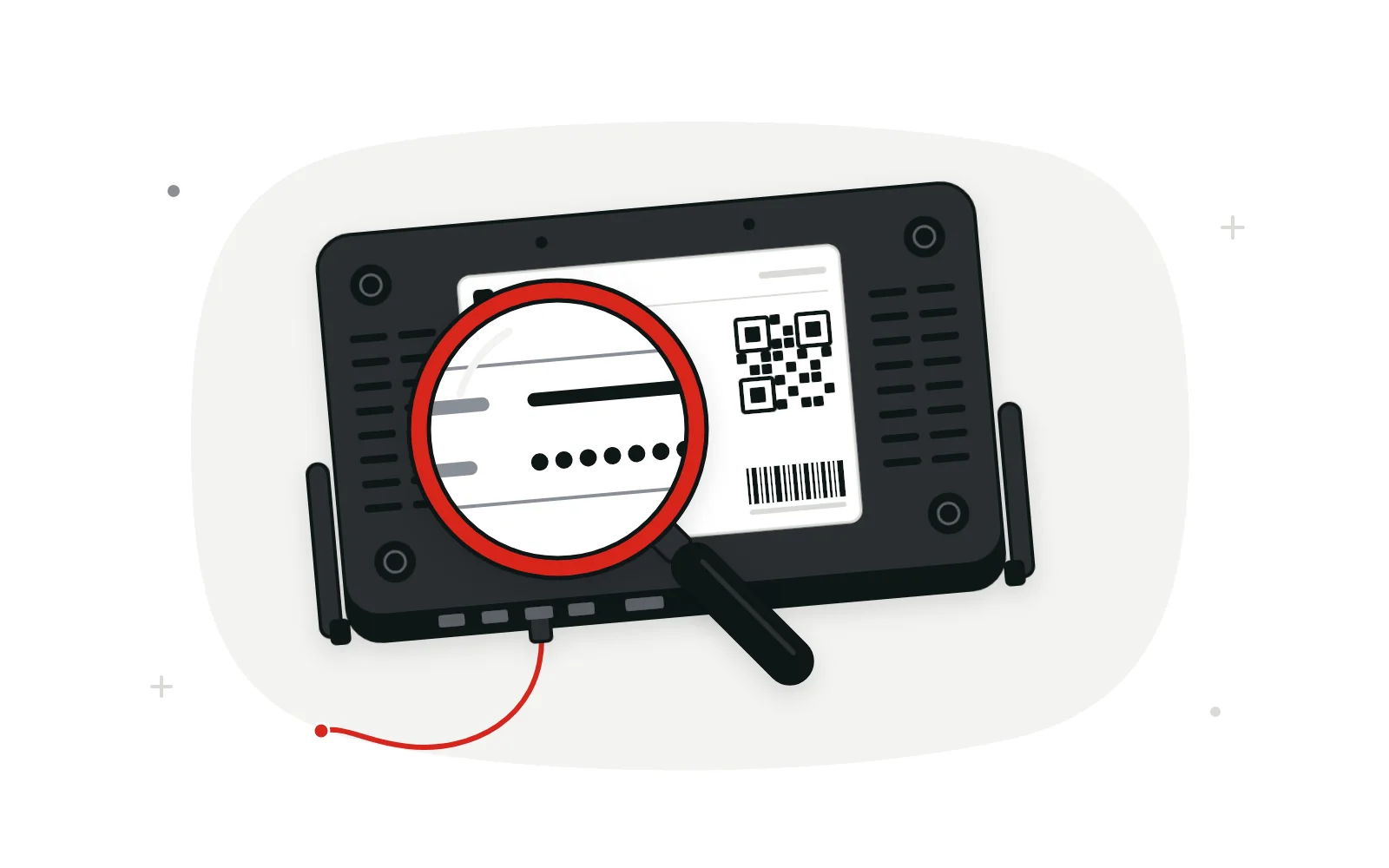
Check the label on the bottom, back or side of your router first. Whatever it calls the admin, router or management password is your default, and it outranks any list online, this one included.
Factory logins follow one of three patterns:
- Unique password on the label: Verizon Fios, AT&T, and D-Link routers bought after 2017.
- You set it at first login: many current TP-Link, ASUS, NETGEAR and Linksys retail models. The model label or manual confirms which applies.
- Shared default: older hardware, with pairs like admin and admin that last until someone changes them.
You don’t need a working internet connection for any of this. The login page runs on the router, so any device on its Wi-Fi or plugged into a LAN port can reach it.
Where the factory password is printed, and how to read it
Most makers put the label on the base or rear panel. AT&T puts its access code on the gateway label, and Huawei calls its label a nameplate. The box and the quick start card often repeat the same details.
Every brand names the fields a little differently. This sample shows the usual ones and marks the field that opens the settings page.
- 1Network Name (SSID)
- HOMEWIRE-4F2A
- 2Wireless Password
- violet-harbor-3817
- 3Admin Password
- Tq7m-Wx2k-Rb
- 4Web Address
- http://192.168.1.1
- 5S/N and MAC
- 2231-0A7F-5519
00:00:5E:EF:10:2A
-
Network name (SSID)
The Wi-Fi name your devices see, sometimes printed as ESSID or Wi-Fi Name.
-
Wi-Fi password
Joins devices to Wi-Fi. Also called Wireless Password, Network Key or WPA2 key. On most routers it won’t open the settings page.
-
Admin password
Opens the settings page. It may read Admin Password, Router Password, Network Settings password, management password or Device Access Code.
-
Web address
The IP address or hostname that loads the login page. Your device’s default gateway confirms which one is really in use.
-
Serial number and MAC address
These identify the unit for support calls. Neither is a password, though some Linksys routers accept a backup web address built from the serial’s last five digits.
The QR code usually joins a phone to Wi-Fi; it won’t sign you in to the admin page. If your label has no admin line, check the quick start guide or the manual for your exact model number.
Router admin password list by brand
Usual login details by brand, with notes below on the quirks a table can’t hold.
| Brand | Web address | Username | Password | Newer models |
|---|---|---|---|---|
| Linksys | myrouter.local or https://192.168.1.1 | None | admin (Smart Wi-Fi models) | Set in the setup wizard or app |
| TP-Link | tplinkwifi.net or 192.168.0.1 | admin (older models) | admin (older models) | Created at first login |
| NETGEAR | routerlogin.net or 192.168.1.1 | admin | password; 1234 on older units | Replaced during setup |
| ASUS | www.asusrouter.com or the LAN IP, such as 192.168.50.1 | admin, if on the label | admin or a unique pair, on the label | Both set at first login |
| D-Link | dlinkrouter.local or 192.168.0.1 | admin | Blank (older models) | Bought after 2017: printed on the base |
| Tenda | tendawifi.com or 192.168.0.1 | None | Set in quick setup | Some use the label’s Wi-Fi password |
| Huawei | 192.168.3.1 (see the nameplate) | None | Set in setup, or on the nameplate | Provider versions differ |
| Verizon Fios | 192.168.1.1 or myfiosgateway.com | admin | Unique, on the rear label | Verizon Router: mynetworksettings.com |
| AT&T | 192.168.1.254 | None | Device Access Code, on the gateway label | Code can be changed |
| Xfinity | 10.0.0.1 | admin | Set when you enable app access | XB6 and later: app toggle first |
| Spectrum | My Spectrum app | n/a | n/a | Managed in the My Spectrum app |
| eero, Google Nest Wifi | Mobile app | n/a | n/a | Managed in the app, not a browser |
Linksys
Smart Wi-Fi models show a single Router Password box, and Linksys’s current login guides use https addresses, so a certificate warning may appear first. Mesh owners who forget the password can use the Recovery Key on the main router’s base, as our recovery guide explains. The Linksys app creates the admin password during mesh setup, and some updated nodes make you set one before the web page opens.
TP-Link
If tplinkwifi.net won’t load, TP-Link suggests typing 192.168.0.1 or 192.168.1.1 instead. Routers linked to a TP-Link ID let you switch between that account and the local password on the sign-in screen. TP-Link’s login FAQ says a forgotten local password means a factory reset.
NETGEAR
Both login fields are case-sensitive. NETGEAR’s default password article says newer products make you replace the default during first-time setup. On those units, the working password is whatever went into the setup wizard, not the documented default. The Nighthawk app is separate again: it signs in with a NETGEAR account.
ASUS
ASUS asks you to choose the login name and password on your first visit, and again after any factory reset. Some models print admin, or a unique pair, on the label, so read yours before guessing. ASUS’s web interface FAQ uses 192.168.50.1 as its example address.
D-Link
D-Link’s support site says routers bought after 2017 are secure by default, with the password printed on the bottom near the serial number. Some model guides still list a blank password, so check the base before trying one. Our guide to the 192.168.0.1 login page goes deeper on D-Link, TP-Link and Tenda.
Tenda
Tenda says its login window appears once a login password has been set, so a factory-fresh unit may go straight to setup. Create a password there. The Tenda MF3 instead logs in with the Wi-Fi password from its rear label. Older units are commonly reported to use admin for both fields, which Tenda’s current guides don’t mention.
Huawei
Huawei tells owners to trust the address on the nameplate. Its login asks only for a password: the one set during setup or, on some units first set up through WPS, the nameplate’s management password. Provider-supplied Huawei units vary widely. Huawei notes that carrier versions can use a different address, so ask your provider for the login rather than guessing.
Other router brands
Providers and app-first mesh systems do things their own way.
- Verizon Fios
- The username is admin, and the unique password is on the rear label, as Verizon’s Fios Router page explains. The newer Verizon Router calls it the Network Settings password.
- AT&T
- No username. Changing protected settings takes the gateway label’s Device Access Code.
- Xfinity
- If you rent an XB6, XB7, XB8 or XB10, Xfinity has you switch on Admin Tool access in its app and create a password there. Setups from before February 2026 may still take the sticker password, and our 10.0.0.1 Admin Tool guide covers the app step.
- Spectrum
- Spectrum manages the routers it supplies through the My Spectrum app, where the router’s Advanced Settings screen lives under Services. Don’t count on a local login page.
- eero
- No browser page. eero says its networks can be managed only in the mobile app.
- Google Nest Wifi
- Managed in the Google Home app, which has replaced the Google Wifi app. Google’s help pages send every settings change through that app.
Why shared factory logins are disappearing
California’s SB-327, in force since January 1, 2020, added section 1798.91.04 to the state Civil Code. It covers devices you can log in to from outside the local network. For those, the law accepts either of two designs as a reasonable security feature. One is a preprogrammed password unique to each unit. The other forces the owner to create new credentials before first access.
Those two routes match the table. Verizon, AT&T and newer D-Link units print a unique password, while TP-Link, ASUS, NETGEAR and Linksys use a setup screen.
The UK’s PSTI regime, in effect since April 29, 2024, goes further. Unique passwords can’t come from incrementing counters or public information, or from a serial number unless it’s run through accepted encryption or keyed hashing. Makers must also publish a way to report security flaws and a minimum security update period with an end date.
So a recent router is unlikely to share its factory password with other units, and lists like this matter most for older hardware.
The factory password didn’t work: likely reasons
A rejected default nearly always has an ordinary cause. Rule these out before resetting anything.
- It was changed during setup. A wizard, an installer or a previous owner may have replaced it. The label only describes the factory state.
- The wrong line went in. The Wi-Fi key and the admin password often sit side by side on the label.
- A character was misread. Many routers treat logins as case-sensitive, and label fonts blur 0 and O, or 1, l and I. Tap the eye icon to check what you typed.
- You reached a different box. With a provider gateway and your own router both running, the page may belong to the other device.
- A session is still open. ASUS says to wait three minutes if the last person closed the browser without logging out.
Still stuck? Read how to recover a router admin password before any reset, or our router login troubleshooting guide if the page won’t load at all.
Swapping the factory password for one you choose
This takes a few minutes and leaves your Wi-Fi password alone, so devices normally stay connected. First time in the settings? Start with our step-by-step 192.168.1.1 login.
-
Sign in with the current login
Use a cable if you can, plus the label password or the one you set.
-
Find the password setting
Look under Administration, System, Management or Security. On Linksys Smart Wi-Fi routers it’s under Connectivity, next to Router Password.
-
Enter a long new password
Type the old password, then the new one twice. Linksys asks for at least 10 characters mixing cases, a number and a symbol.
-
Save and sign back in
Click Save or Apply, then log in again with the new password to confirm it took.
-
Store it and switch on recovery
Keep it in a password manager, and turn on any recovery feature your router offers while you still have access.
Keeping the settings page in your hands
A new admin password is one layer. These habits cover what a password can’t.
- Use a password manager. It generates a long, random admin password, so you never reuse your email or Wi-Fi password here.
- Turn off remote management. Keep the web admin page reachable only from home. If you need to check in while away, use the maker’s app when it offers remote access.
- Install firmware updates. Switch on automatic updates if offered, and check manually now and then if not.
- Know when support ends. Retire a router once its security fixes stop. Makers selling in the UK must publish that end date.
The FBI’s May 2025 alert on end-of-life routers shows why the last two matter. The TheMoon malware it described needs no password. It scans for open ports and sends commands to a vulnerable script, and some of the hijacked routers had remote administration turned on.
The FBI said routers dated 2010 or earlier likely get no more updates, and it recommended passwords of 16 to 64 characters. Its warning signs include a router running hot, connection trouble and settings you didn’t change.
Default password questions, answered
Does a factory reset bring back the password printed on the label?
Yes, on routers that ship with a printed admin password, since a reset restores the state the label describes. Models with a first-visit setup screen show that screen again instead.
Why is there no username box on my router’s login screen?
Many routers use a fixed account name behind the scenes, so only a password is needed. Enter the admin password from your label, or the one you created, and nothing else.
Is my internet provider account password the same as the router admin password?
No. The provider account signs you in to the provider’s website or app, and some connections also use a PPPoE login that the router sends upstream. Neither one opens the router’s local settings page.
Does the router’s phone app use the admin password too?
Often not. Many maker apps sign in with a cloud account, such as a NETGEAR account or a TP-Link ID. The local admin password still guards the web page, so keep both strong and different.
Why did my new router open its settings without asking for a password?
Some routers skip the login until an admin password exists. Anyone on your network could change settings in that state, so create a password before you finish setup.
What if the label on my router has worn off?
Check the box, the setup card and the online manual for your model, or ask your provider about its own equipment. If the admin password existed only on that label, a reset won’t help, so contact the maker first.
The label first, the list second
Your router’s label is the best record of its factory login, and this list is the backup for vague labels and old hardware. Keep the two passwords apart: one joins devices to Wi-Fi, the other opens the settings page. If the factory login still works, replace it today, store the new one in a password manager and switch off remote management. If it was changed and forgotten, try the recovery options before any reset.