192.168.0.1 login in brief
If your router or modem-router uses 192.168.0.1, signing in takes about a minute:
- Put your laptop or phone on that device’s network, over Wi-Fi or with a cable in a LAN port.
- Type
http://192.168.0.1in the address bar, or the brand web address from the table further down. - Enter the admin password, not the Wi-Fi password. Create one if the screen asks you to.
- Change what you came for, then click Save or Apply.
Nothing loads? Your equipment may use another address, or you may be connected to a different box than you think. The next section helps you tell them apart.
Which box answers at 192.168.0.1?
Usually the router, or the router half of a modem-router combo. A plain cable modem doesn’t host this page at all. It keeps a separate status page at another address.
Whichever device holds the address acts as the default gateway for your phones and laptops. It also runs a small built-in web server for its own settings, reachable only from inside your network.
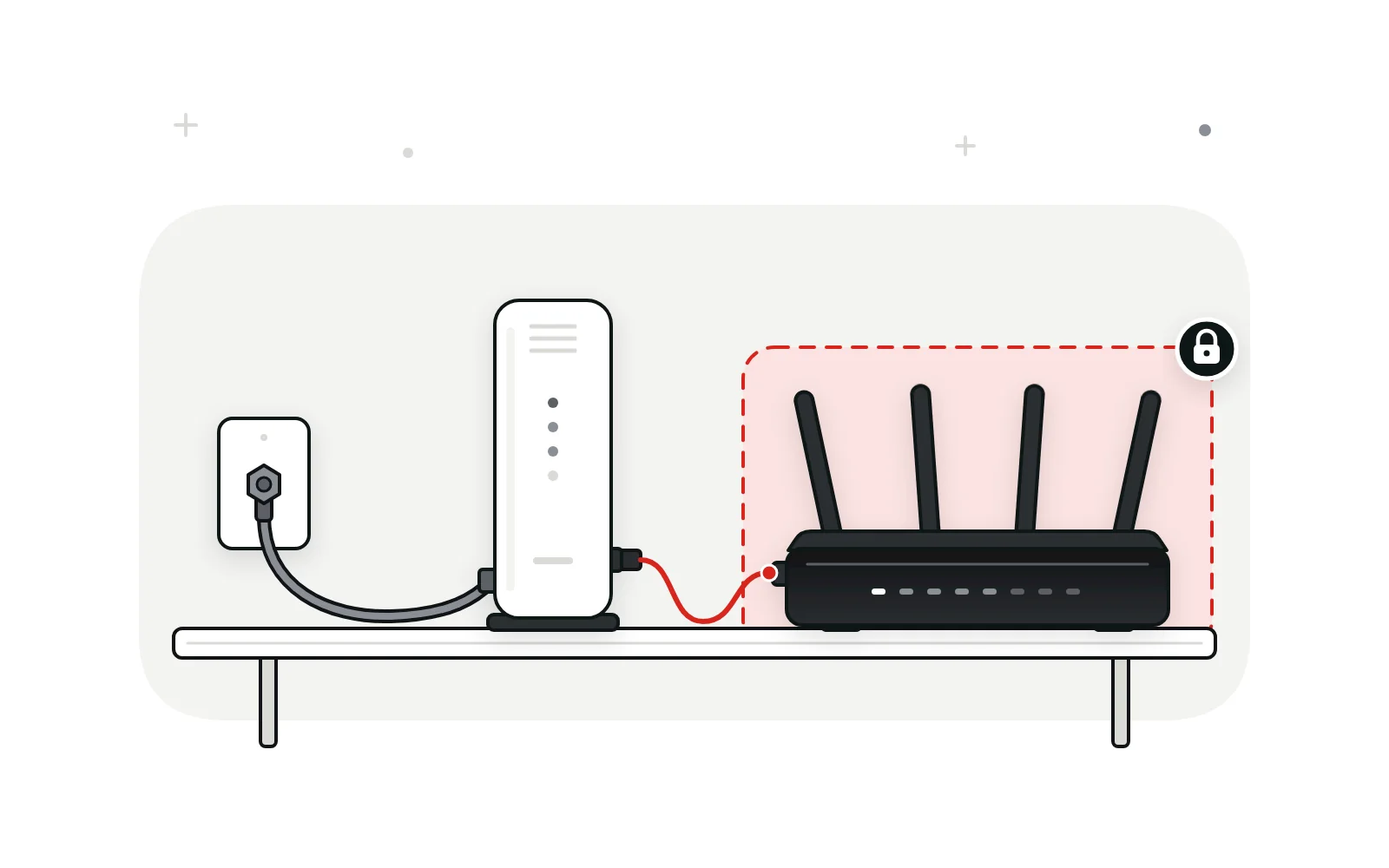
Cable internet complicates things, because the modem and the router can be two boxes or one. Compare what each type does:
Cable modemStandalone
- Its job
- Turns your provider’s coax signal into an Ethernet connection
- Wi-Fi
- None
- Ports
- One coax jack, usually one Ethernet port
- Web page
- A status page, often at 192.168.100.1
- You’d change
- Very little. You mostly read signal and connection status
RouterStandalone
- Its job
- Shares one internet connection with every device and runs your Wi-Fi
- Wi-Fi
- Yes
- Ports
- An internet (WAN) port plus several LAN ports
- Web page
- 192.168.0.1 on many D-Link, TP-Link and Tenda models
- You’d change
- Wi-Fi, admin password, firmware, operating mode
Modem-router comboAlso called a gateway
- Its job
- Both jobs in one case
- Wi-Fi
- Yes
- Ports
- A coax jack plus LAN ports
- Web page
- Often 192.168.0.1 for the router side
- You’d change
- Router settings, plus bridge mode if you add your own router
To tell them apart by eye, look at the back and the label. A round, threaded coax jack means the box contains a modem. A Wi-Fi network name and key printed on the sticker mean it contains a router. Both together mean you have a combo.
Is 192.168.0.1 any different from 192.168.1.1?
Not in speed or security. Both sit in the private 192.168.0.0/16 block that RFC 1918 sets aside for local networks. The maker just picked a different third number.
That third number sets the subnet. A router at 192.168.0.1 gives its devices addresses such as 192.168.0.100, while one at 192.168.1.1 hands out 192.168.1.x. It only starts to matter when two routing boxes are chained together, because each one needs its own subnet.
Brand habits explain the split. D-Link, many TP-Link models and Tenda lean toward 192.168.0.1. NETGEAR, Linksys and Verizon Fios gear usually sits on the other default, which our 192.168.1.1 admin login guide covers. Rented cable gateways add a third common address, explained in our 10.0.0.1 guide for Xfinity gateways.
Brand web addresses that open the same page
Several makers print a friendly web address on the label that leads to the router’s settings, wherever the router currently sits. Those names only work while you’re connected to that brand’s router.
| Brand | Web address | Typical login note | App option |
|---|---|---|---|
| D-Link routers | dlinkrouter.local | Username admin. D-Link’s DIR-878 help page says no password is set by default. | Varies by model |
| TP-Link routers | tplinkwifi.net | Newer models make you create a password at first login; older ones used admin in both fields. | TP-Link Tether |
| TP-Link DSL modem routers | tplinkmodem.net | These use 192.168.1.1 rather than 192.168.0.1. | See the model’s manual |
| Tenda routers | tendawifi.com | Most use the password set in quick setup; the MF3 takes the label’s Wi-Fi password (see below). | Varies by model |
| Arris SURFboard SBG combos | None, use the IP | Differs by model, so check the label and the manual before guessing. | Varies by model |
| Cox Panoramic Wifi gateways | None | Managed mainly by app, and Cox customers are moving to Spectrum after the 2026 merger. Don’t count on 192.168.0.1 opening its settings. | Provider app |
Official walkthroughs, if you want them: TP-Link’s router login help, D-Link’s DIR-878 login page and Tenda’s web login guide.
Signing in through a browser, step by step
Five steps cover nearly every router and combo on this address. Menus look different from brand to brand, but the order stays the same.
-
Pick the device you mean to manage
Check the label on each box. If you have a combo and a separate router, decide which one needs changing before you connect, because each has its own settings page.
-
Join its network, ideally by cable
Plug a laptop into a LAN port on that device, or join its Wi-Fi. D-Link recommends a wired link for first setup, so a wireless change can’t drop you halfway through.
-
Type the address, not a search
Enter http://192.168.0.1, or the brand’s web address, in the bar at the top of the browser. The search field on a new-tab page hands it to a search engine instead.
-
Answer the prompt you’re shown
A router that’s already set up asks for its admin password. A new or freshly reset TP-Link or Tenda may open a quick-setup wizard that asks you to create one instead.
-
Save before you leave
Click Save or Apply after each change. Some routers restart their radios afterward, so give the lights a moment to settle before you reconnect.
Which password the 192.168.0.1 screen expects
It wants the router’s admin password, which guards the settings page. The Wi-Fi password only gets a device onto the network, even when the two are printed side by side on one sticker.
Tenda has an exception worth knowing. Its guide for the MF3 4G router says to type the wireless password from the rear label at the login window. Most Tenda Wi-Fi routers only show a login window after you set a login password during quick setup.
Many current TP-Link retail routers skip shared defaults and have you create an admin password on your first visit. Check the model label or manual before guessing. If you linked the router to a TP-Link ID, the login screen lets you switch to that account instead. A D-Link that has never been set up may have no admin password at all.
Rented combos are different again. The label or the provider’s app usually has the answer, and an installer may have changed it on the day of the visit.
Locked out after changing it yourself? Some TP-Link models can send a recovery code by email or ask security questions, if that was set up in advance. Our guide to getting back into a locked router covers those options and the reset route.
Settings worth a visit once you’re signed in
Start with the admin password and the firmware, because both protect everything else. Then check the items below.
- Admin password. Replace a blank or shared default with a long one stored in a password manager.
- Firmware. Look under System Tools, Administration or Maintenance for an update check. Updates close security holes, and the menu name depends on the brand.
- Password recovery. On TP-Link routers that support it, set up email or security-question recovery under Advanced › System › Administration while you can still sign in.
- Operating mode. Make sure router or access point mode matches how the device is actually wired.
- LAN address and DHCP pool. Move the router off 192.168.0.1 only if another box already uses it. Devices pick up the new range when they reconnect.
- Web admin from outside. Leave it switched off unless you rely on it. A maker’s app is the safer way to manage things away from home.
Wi-Fi name, password and security mode usually sit in a menu called Wireless or Wi-Fi.
Operating modes: where the login page moves
The address only stays at 192.168.0.1 while the device works as a router. Switch it to access point or bridge mode and the settings page usually moves. That’s how a bookmarked login can suddenly go dead.
Router mode
This is the default for most home routers. The device hands out addresses by DHCP, runs the firewall and keeps its own fixed address, often 192.168.0.1.
Access point mode
Here the unit stops routing and simply adds Wi-Fi to a network that another router runs. It then takes an address from that main router. TP-Link access points can be reached at tplinkap.net, according to TP-Link’s access point login guide. For other brands, find the device in the main router’s client list.
Bridge mode on a combo
In bridge mode the modem-router stops routing and acts like a plain modem, handing that job to your own router. Your devices then get addresses from your router, and the combo’s 192.168.0.1 page stops being the one you use day to day.
Two boxes, one subnet
Trouble starts when a combo and a new router both want 192.168.0.1. The router’s internet side and its home side then share a subnet, and traffic can’t be routed cleanly. Some routers notice the clash and move their own address, so the login page seems to disappear.
The cure is to bridge the combo or give your router a different LAN address. Leaving both boxes routing, even on separate subnets, creates double NAT, which tends to upset game consoles and port forwarding.
The cable modem page at 192.168.100.1
Standalone cable modems, SURFboard models included, show a status page at 192.168.100.1 instead of 192.168.0.1. It tells you whether the modem has locked onto your provider’s signal. Wi-Fi and router settings don’t live there.
- Connection status
- Operational
- Downstream channels
- Locked
- Upstream channels
- Locked
- Up time
- 3 days 04:12:09
The page earns its keep during an outage. Signal and connection details there help your provider’s support line tell a line fault from a router problem. If it won’t open through your router, try a computer cabled directly to the modem.
Troubleshooting a silent 192.168.0.1
Most failures come down to the wrong box or the wrong network. Find the line that matches what you see, then try the suggested fix.
-
Every browser times out
Likely causeYour gateway isn’t 192.168.0.1.
TryCheck the default gateway (next section). TP-Link’s own help also suggests trying 192.168.1.1.
-
A different brand’s login appears
Likely causeYou reached the combo instead of your router, or the other way round.
TryCable the laptop to the box you want to manage, or put the combo in bridge mode.
-
A privacy or certificate warning
Likely causeThe router signs its own HTTPS certificate.
TryOn TP-Link, choose Advanced and then Proceed. TP-Link says this warning is expected on your own router.
-
The password is rejected
Likely causeThe Wi-Fi key went in the admin field, or the password was changed during setup.
TryCheck your setup notes and password manager before the label.
-
It worked before, now nothing
Likely causeThe operating mode changed, or a new modem forced the router onto another address.
TryFind the device in the main router’s list of connected (DHCP) clients.
-
The page half-loads or buttons do nothing
Likely causeAn old browser or an extension is interfering.
TryTP-Link recommends a current Chrome, Firefox or Edge. Try one in a private window.
VPNs, phones that quietly switch to cellular and other causes are covered in our router login problems checklist.
Maybe your router isn’t on .0.1 at all
Your phone or computer already knows the right number. In the network details, look for Default Gateway on Windows, Router on a Mac or iPhone, or Gateway on Android, and type that address instead.
If it reads 192.168.0.1, you’re on the right page. Anything else means your equipment uses a different address. Our guide to finding your router’s IP address shows where that setting hides on each device.
Loose ends: 192.168.0.1 questions
Is 192.168.o.1 the same address as 192.168.0.1?
No. 192.168.o.1 has the letter o where a zero belongs, so the browser treats it as a search or a broken web address. IP addresses contain only digits and dots. Retype it using the zero key and the router page should appear.
Why does tplinkwifi.net or tendawifi.com show an error instead of my router?
Those names only lead to your router while your device is on that router’s network. From anywhere else they point to the maker’s servers or nowhere at all. Tenda also warns that a browser can cache the wrong result, so clear the cache or type the numeric address.
Is it safe to leave a D-Link admin password blank?
No. With no password, anyone who joins your Wi-Fi, guests included, can open the settings page and change things. Set a long admin password during first setup, and keep it different from the Wi-Fi key.
Does a TP-Link Deco mesh system use 192.168.0.1?
Usually not. TP-Link lists 192.168.68.1 and tplinkdeco.net for the Deco web page, and you sign in with the TP-Link ID that owns the network. Setup and most settings happen in the Deco app, and not every Deco model has the web page yet.
Will a factory reset put my router back on 192.168.0.1?
Yes, if that was its factory address. A reset brings back the default LAN address, the default login and the Wi-Fi name and key from the label. Custom addresses, port rules and saved passwords are erased, so write them down before you press the button.
Can I look up the Wi-Fi password without signing in at 192.168.0.1?
Often, yes. The label shows the factory Wi-Fi password, and most current phones and computers can display or share the password of a network they have already joined. Changing it is different: that needs the admin login.
Know the box, then sign in
Most 192.168.0.1 trouble comes from talking to the wrong box. Read the labels, decide whether you own a modem, a router or a combo, and connect to the one you want to change. The login screen then wants the admin password, which newer TP-Link and Tenda units have you create. If nothing loads, your device’s default gateway gives you the real address. Once you’re in, set a strong admin password and check for firmware before touching anything else.